

Home Assistant
The Home Assistant integration consists of two parts:
- node sensors: each ESP32 appears as a device automatically (because MQTT auto discovery), including entities to set max distance and disable/enable active scan or query
- beacons: define each beacon in
configuration.yaml(using mqtt_room integration)
beacons: MQTT device topics
Section titled “beacons: MQTT device topics”Once the ESP32 is running, it is important to configure Home Assistant to use the information from the MQTT topic to determine what devices to track. You can read the full documentation on the Home Assistant website. It is critical that you configure your device IDs to match the device fingerprint found by ESPresence (e.g. apple:1007:11-12).
connect to ESP32
Section titled “connect to ESP32”The easiest way to find the fingerprint is to connect the usb cable and monitor the serial port (115200 baud) while bringing a device close to the ESP32. To monitor the serial port you can use the ESPresense terminal.
Alternatives: e.g. Arduino monitor function, the PlatformIO VSCode extension or via platform io pio run --target monitor.
You should see output similar to the following:
--- Miniterm on /dev/cu.usbserial-39522517AB 115200,8,N,1 ------ Quit: Ctrl+C | Menu: Ctrl+T | Help: Ctrl+T followed by Ctrl+H ---0 New | MAC: 67dc0c979510, ID: apple:0c0e:260 New | MAC: 14dc290e58f2, ID: apple:0a01:51 Close | MAC: 4277f2521053, ID: apple:1007:11-12The Close message will show which devices are under half a meter away. Once you move the device > 1m you will see a Left message.
monitor MQTT topics
Section titled “monitor MQTT topics”Alternatively, you can monitor the MQTT topics using e.g. MQTT Explorer or the monitoring built into the Home Assistant MQTT integration (Configure -> Listen to topic -> espresense/# -> Start listening will give you all taffic from all nodes).
Connect to the Home Assistant MQTT broker (same configuration as used for the ESPresence sensor setup).
This groups + shows the rooms and devices.
MQTT auto discovery
Section titled “MQTT auto discovery”ESPresense supports MQTT auto discovery, which is enabled by default in Home Assistant. This means a device + entities for each ESP32 sensor will automatically be created.
They appear as device + entities in Mosquitto broker card on the integrations page.

And available in the devices overview.

beacons: configuration.yaml
Section titled “beacons: configuration.yaml”Each beacon that should be monitored in Home Assistant needs to be added to the configuration.yaml file.
sensor:# One entry for each beacon you want to track - platform: mqtt_room device_id: "iTrack:xxxxxxxxxxxx" name: 'ESP Keys' state_topic: 'espresense/devices/iTrack:xxxxxxxxxxxx' timeout: 10 away_timeout: 120 - platform: mqtt_room device_id: "iBeacon:xxxxxxxx-xxxx-xxxx-xxxx-xxxxxxxxxxxx-3-58241" name: 'ESP Chipolo' state_topic: 'espresense/devices/iBeacon:xxxxxxxx-xxxx-xxxx-xxxx-xxxxxxxxxxxx-3-58241' timeout: 10 away_timeout: 120If you have enrolled a device with a specific name that becomes the device_id to track.
screenshots
Section titled “screenshots”MQTT ESP32 Device
Section titled “MQTT ESP32 Device”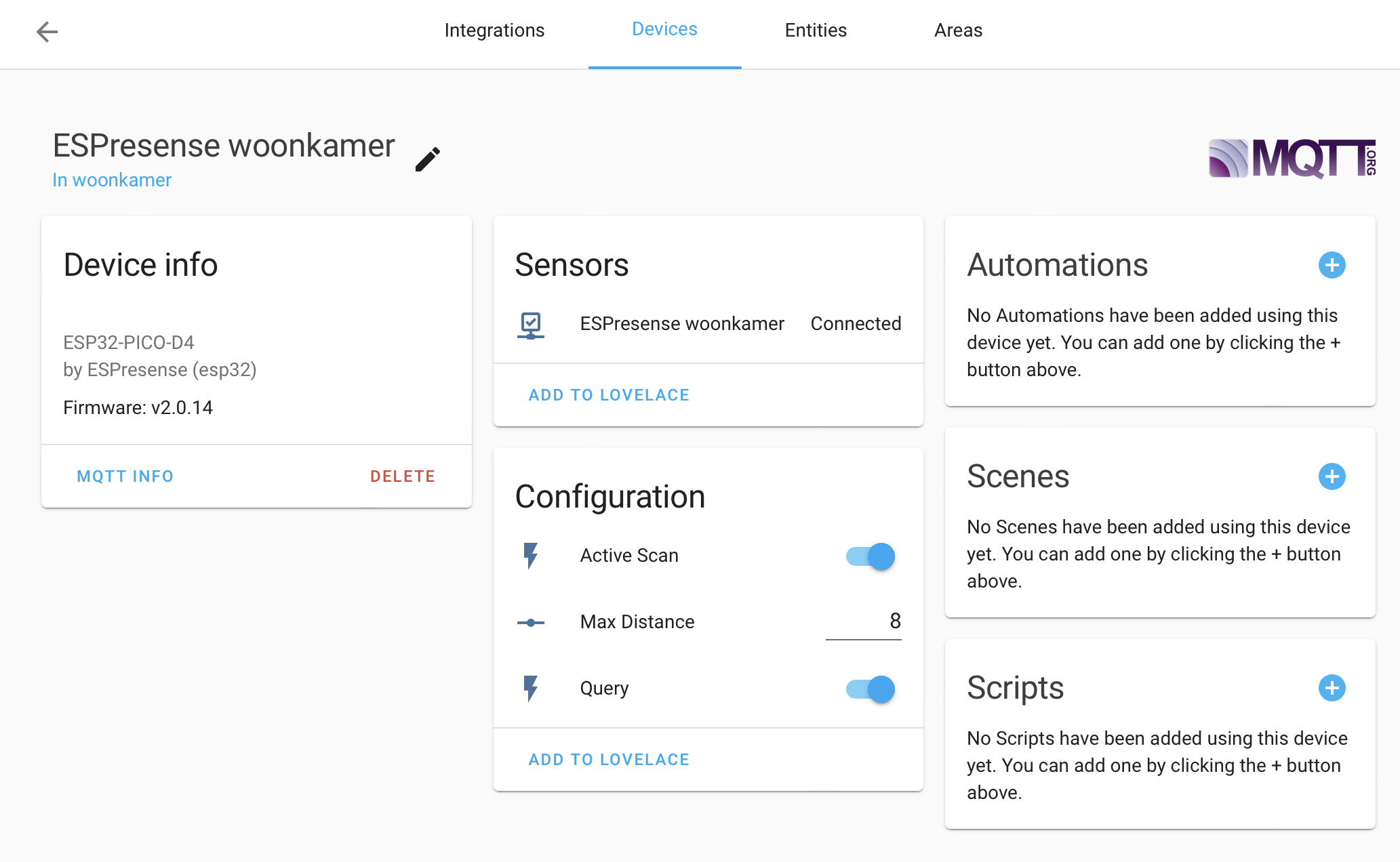
beacon: MQTT room sensor in the lovelace UI
Section titled “beacon: MQTT room sensor in the lovelace UI”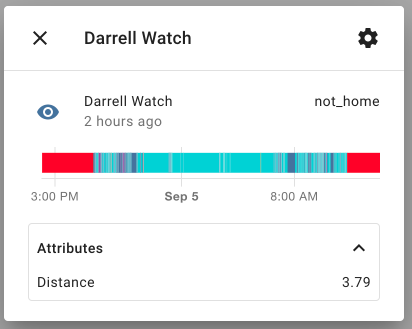
ESP32 sensor: binary sensor with telemetry in the lovelace UI
Section titled “ESP32 sensor: binary sensor with telemetry in the lovelace UI”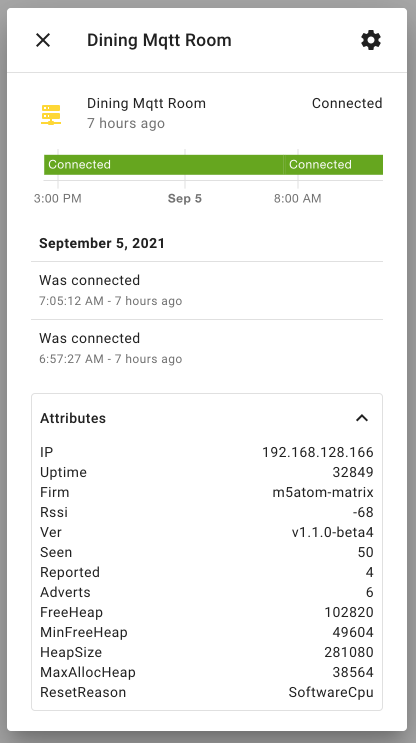
sensors: manual configuration
Section titled “sensors: manual configuration”Normally not needed, but in case MQTT auto discovery is disabled, it is possible to manually add a binary_sensor for the ESP32 sensor.
Note: this does not add the entities that are normally added automatically: set max distance, active scan, query.
mqtt: binary_sensor: # One entry per sensor node - unique_id: 'kitchen' name: 'Kitchen' state_topic: espresense/rooms/kitchen/status json_attributes_topic: espresense/rooms/kitchen/telemetry payload_on: online payload_off: offline device_class: connectivity - unique_id: 'living_room' name: 'Living Room' state_topic: espresense/rooms/living_room/status json_attributes_topic: espresense/rooms/living_room/telemetry payload_on: online payload_off: offline device_class: connectivity - unique_id: 'kid_room' name: 'Kid Room' state_topic: espresense/rooms/kid_room/status json_attributes_topic: espresense/rooms/kid_room/telemetry payload_on: online payload_off: offline device_class: connectivity - unique_id: 'master_bedroom' name: 'Master Bedroom' state_topic: espresense/rooms/master_bedroom/status json_attributes_topic: espresense/rooms/master_bedroom/telemetry payload_on: online payload_off: offline device_class: connectivity