Apple
Apple devices emit various BTLE continuity messages, often identified by the fingerprint apple:100?:*-*. In households with multiple iPhones, the nearby info may collide, leading to duplicate fingerprints. To resolve this, you obtain the remote IRK (Identity Resolving Key) from your iOS (iPhone, iPad) or watchOS (Apple Watch) device. You can paste an IRK directly into the Known BLE identity resolving keys section of the ESPresense configuration, but the Enroll flow below is the recommended path — it’s easier and syncs automatically to all ESPresense nodes. Requires ESPresense firmware v3.0 or higher.
While enrollment is active the node emulates a Heart Rate Monitor (BLE service 0x180D), so iOS and watchOS pair to it natively from their own Bluetooth settings. No companion app is required on the phone or the watch.
For per-device enrollment recipes covering Android, Polar, Withings, Amazfit, and the Find-My device family, see the Enrolling devices how-to. AirPods caveats are also captured there.
Note: Some iOS devices do not emit a beacon while the phone screen is off if there is not a reason for the device to broadcast a signal, so the device may not appear while the screen is off. A paired Apple Watch, Universal Clipboard with Handoff enabled, or another service that requires the phone to communicate regularly may resolve this, since they keep the phone communicating while “sleeping.” If you do not have a bluetooth device like an Apple Watch, some users report that background apps such as iCloud Family Sharing, iCloud Photo Backup, or Room Assistant have convinced the device to communicate while “sleeping.” This issue is not universal, and it’s not clear why it occurs — you may not experience it even if the device seemingly has no reason to communicate.
Enrollment (easiest)
Section titled “Enrollment (easiest)”iPhone / iPad
Section titled “iPhone / iPad”- Navigate to the ESPresense devices page in your browser:
http://<ip>/ui/#/devices. - Enter a name for your device in the name field and click the
Enrollbutton. You have 2 minutes before the enrollment window closes. - On your iPhone or iPad, go to
Settings→Bluetooth. You’ll see a newESPresensedevice. - Tap the bluetooth device named
ESPresenseand accept the request to pair securely. - The Enroll prompt should stop automatically, indicating the key has been obtained and added to the MQTT topic
espresense/settings.
Apple Watch
Section titled “Apple Watch”The watch pairs directly from its own Bluetooth settings — no companion app on the watch and no helper on the phone. The previous BluetoothLE / Bluetooth Terminal walkthrough is no longer needed on current firmware.
- Navigate to the ESPresense devices page in your browser:
http://<ip>/ui/#/devices. - Enter a name for your device in the name field and click the
Enrollbutton. You have 2 minutes before the enrollment window closes. - On your Apple Watch, open
Settings→Bluetooth. - Wait for an
ESPresensedevice to appear (it advertises as a Heart Rate Monitor; some watchOS versions surface it under a “Health Devices” subhead). - Tap
ESPresenseand accept the pair request. - The Enroll prompt in the ESPresense UI stops automatically — the IRK has been captured and published to
espresense/settings.
If ESPresense doesn’t appear within ~30 seconds, toggle Bluetooth off and back on (Settings → Bluetooth) on the watch, then click Enroll again in the ESPresense UI to restart the 2-minute window. If pairing still fails, use the Mac Keychain fallback below.
Lookup Method (requires a Mac)
Section titled “Lookup Method (requires a Mac)”This method can be used for any iOS/iPadOS/Watch OS device:
-
On MacOS, ensure you are logged in with the iCloud ID associated with your device.
-
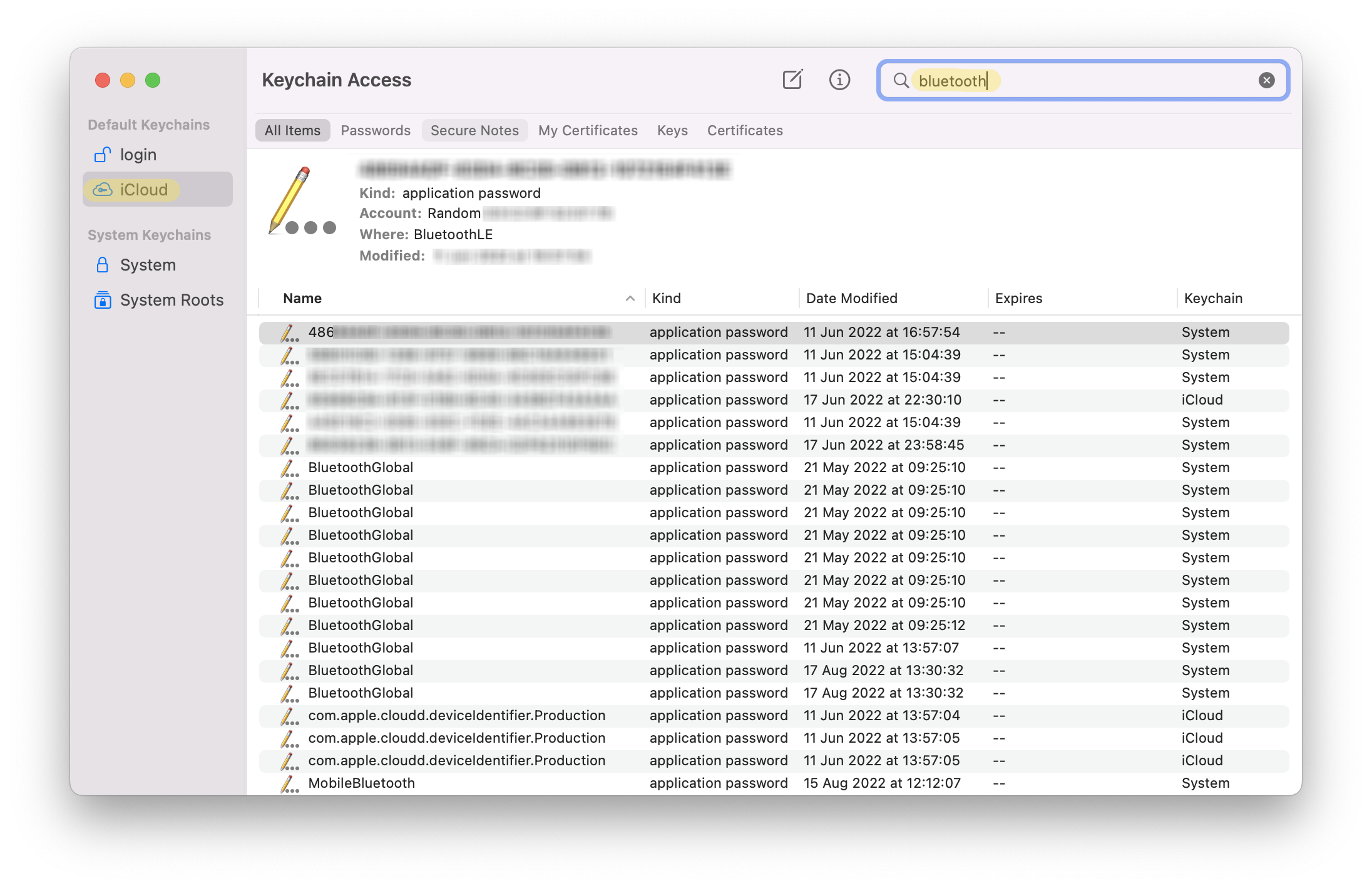
Launch the Keychain Access application.
-
In the left sidebar, click on iCloud.
-
In the upper right search bar, type
bluetooth. -
A series of entries will appear with the application password type.
-
On your Apple Watch device, go to Settings > About, scroll down to find the Bluetooth address, in the format:
XX:XX:XX:XX:XX:XX -
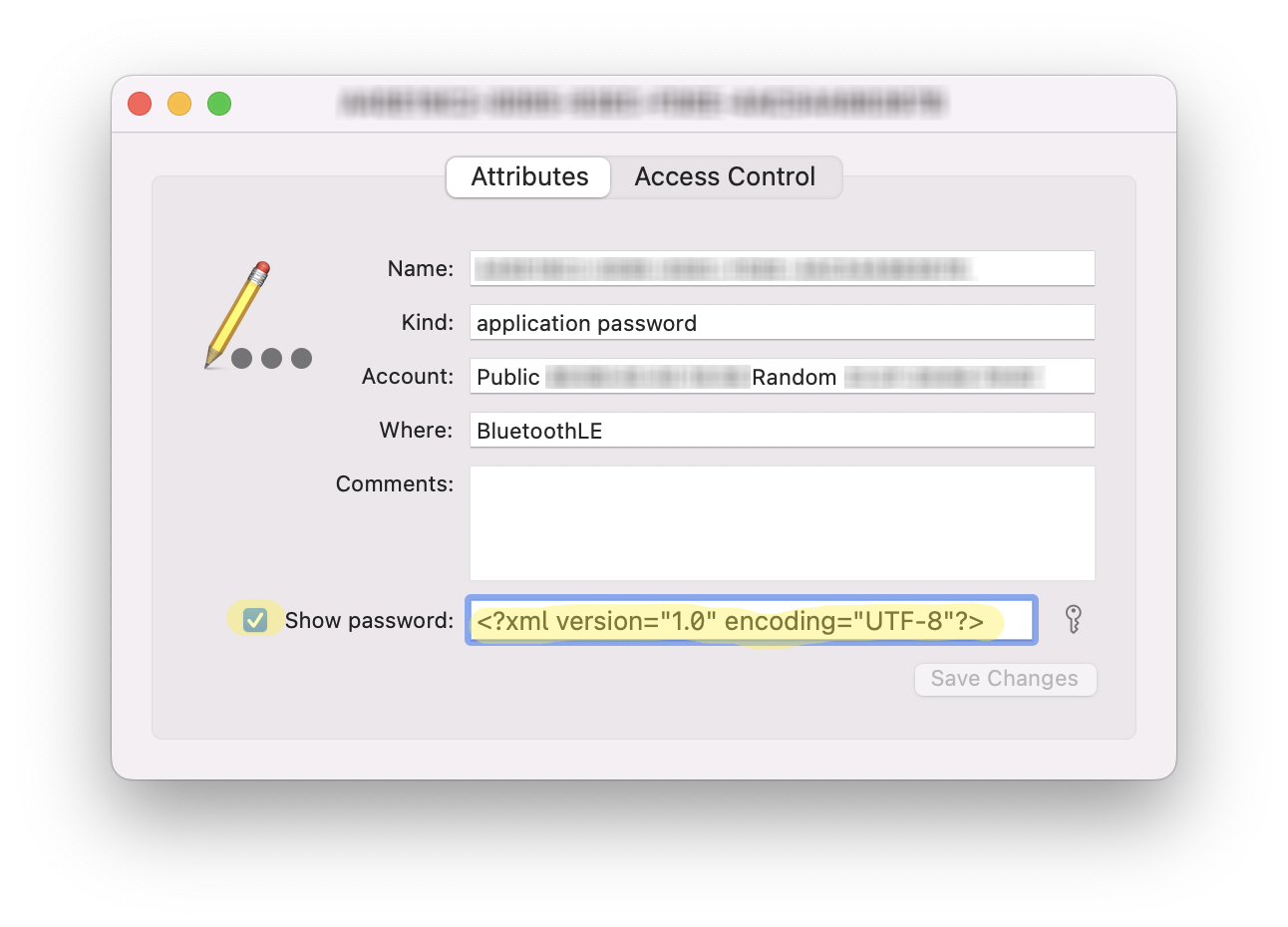
Open each entry to find the one associated with your Apple Watch. The Account field should match the Bluetooth address of your watch, in the format:
Public: XX:XX:XX:XX:XX:XX. -
Click on Show password. Type your macOS password twice and copy the contents.
-
Paste the contents in the form below and click ‘Decode’ to convert this into an IRK.
Output
Option 1
Section titled “Option 1”-
Add the output (which should be 32 characters) to the ‘Known BLE identity resolving keys’ section of the ESPresence configuration.
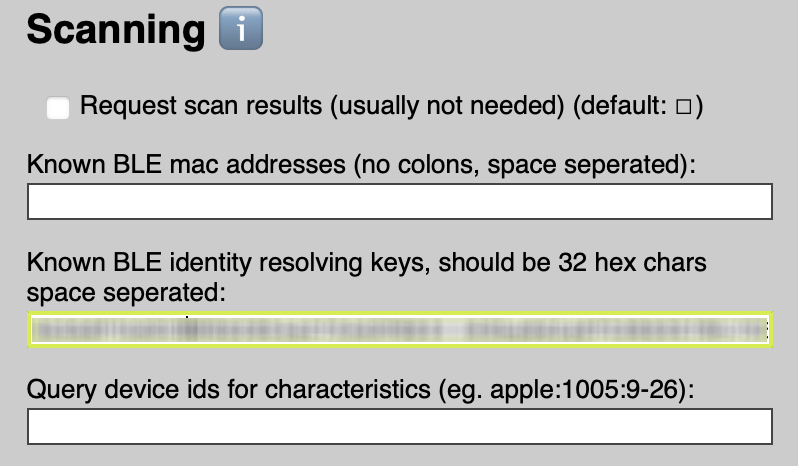
-
In your HASS configuration, add the same string with ‘irk:’ prefixed, e.g., “irk:xxxxxxxxxxxxxxxxxxxxxxxxxxxxxxxx”.
-
Click ‘Save’ in the ESPresense UI, then ‘Restart Device’.
Option 2
Section titled “Option 2”- Alternatively you can publish an MQTT message to the settings topic to simulate what would happen were you to pair from the UI. To do this you can publish to the topic:
espresense/settings/irk:xxxxxxxxxxxxxxxxxxxxxxxxxxxxxxxx/configwith a payload{"id":"device_id", "name":"Device Name"}. Make sure there are no spaces in theidvalue.
Reference · Last verified against firmware v4.0.6 on 2026-05-11.